Situation
Moving to a new iPhone, on the day
Leave the old iPhone alone until the new one has opened your vault. In the morning, let the vault finish its backup and find your recovery key. After setup, open the vault on the new phone, type the key when it asks, and choose a passcode. Open a few photos to check them, then set up again what doesn’t move: face unlock, a decoy vault, Maximum Security. Erase the old phone another day.

On this page
Morning, on the old phone
- Let the backup finish. The vault home says when it last ran. The vault home shows when you last backed up, or says plainly that your vault is only on this iPhone.
- Have the recovery key in your hand. Paper, a printed sheet, a sealed copy, or a guardian’s part. The recovery key checklist lists good places for it.
- Write down which extras you use, such as a decoy code, Dual Lock or a pattern. Those are rebuilt by hand tonight. Your passcodes, the decoy one included, stay on the iPhone where you made them, so a new iPhone starts without a decoy.
- Look through any break-in alerts on the old phone. They don’t move. Break-in photos and their locations stay on the iPhone: they are not part of your iCloud backup and never reach us.
- Stay home for the setup. Apple says that with Stolen Device Protection, setting up a new device from your iPhone away from familiar places asks for Face ID or Touch ID.
Midday, the setup
Use whichever route you like: a transfer from the old phone, a backup, or a fresh start. Quick Start transfers information from an old iPhone with iOS 11 or later to a new one automatically.
Whichever you pick, the vault’s key and passcodes stay behind on purpose, so the afternoon starts with your recovery key. When a vault moves to a new iPhone, its database and settings travel with the app, but its key, its passcodes and its encrypted files do not.
Afternoon, the first unlock
- Open Sealed. It finds its data but not its key, and asks for your recovery key.
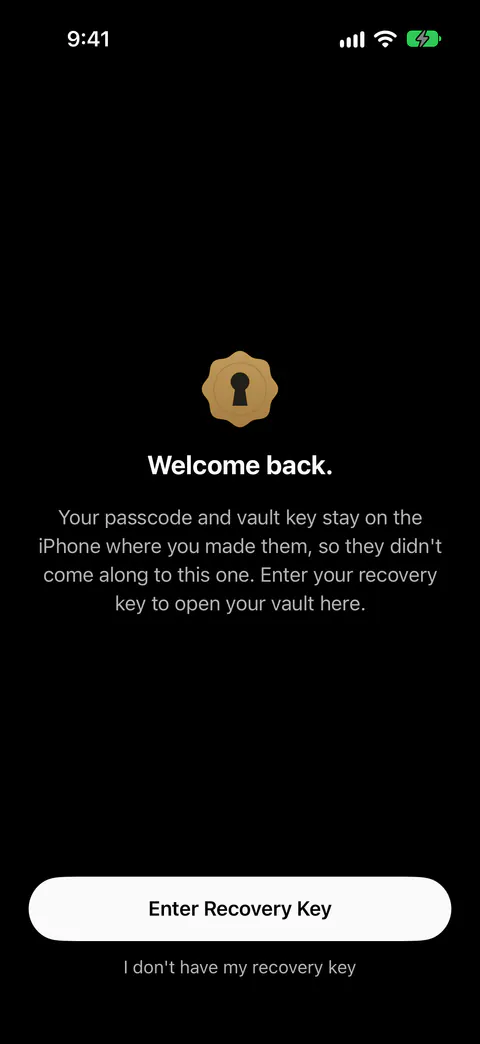
- Type the key. You can type the recovery key in capitals or lower case, with or without dashes and spaces, and Sealed tells you when what you typed is not a valid key.
- Choose a passcode. Once the recovery key is accepted on such an iPhone, Sealed opens the vault there and asks you to choose a new passcode.
- Open one photo, one document, one note. On a new iPhone your files come down one by one once the vault is in place, and whatever doesn’t fit stays in iCloud and opens when you tap it.
Did you set the phone up as new, not from a backup? Then install Sealed and pick the restore button on its first screen. The backup and restore page shows that path, screen by screen.
Evening, the extras
- Face or fingerprint unlock and a passcode. A vault restored onto an iPhone with Face ID or Touch ID can have no Sealed passcode yet, and you set one in Settings, under Passcode & Unlock.
- Maximum Security. After a restore with your recovery key, Maximum Security is off, and you turn it on again in Settings.
- A decoy vault. To set up a decoy, open Settings, then Decoy Vault, and turn on Decoy PIN, which asks you to choose the decoy code.
- The backup itself. A restored vault keeps backing up, and Sealed switches that on only once the restore has worked.
Another day, the old phone
Erase it only once the new one has shown you your photos. The order for wiping and handing it over is on the selling or trading in page. The same move with every screen pictured is in moving a photo vault to a new iPhone.
Where Sealed helps, and where it doesn’t
It helps move the vault with no account to sign in to. Sealed has no account, so there is nothing to sign up for. Before Sealed installs a recovery key on a new iPhone, it checks that the key opens a real record in your iCloud backup, so a key from another vault, or an Apple Account with no backup, changes nothing.
It helps without a server of ours in the middle. We run no server, so there is nothing of yours for us to see.
It doesn’t open on a new phone without the recovery key. The recovery key is the only way to decrypt an iCloud backup on a new iPhone.
It doesn’t bring items that never reached the backup. Once the key is back, Sealed shows your notes and records, brings photos and videos back from iCloud as you open them, and says plainly that items never backed up to iCloud stayed on the old iPhone and cannot be restored on the new one.
It doesn’t carry a decoy vault or break-in photos across. Items in the decoy vault are not part of your iCloud backup. Break-in photos and their locations stay on the iPhone: they are not part of your iCloud backup and never reach us.
Questions and answers
Why does Sealed ask for my recovery key on the new iPhone?
On a new iPhone, Sealed greets you with Welcome back, explains that your passcode and vault key stay on the iPhone where you made them, asks for your recovery key, then asks you to choose a new passcode. Your vault key is kept in the iPhone Keychain, on this device only, and it can be read only while the phone is unlocked.
Does my decoy vault come with me?
Your passcodes, the decoy one included, stay on the iPhone where you made them, so a new iPhone starts without a decoy. Items in the decoy vault are not part of your iCloud backup.
Sources
What this page says about Sealed was checked against the app on .
- Apple Support, About Stolen Device Protection for iPhone — published October 22, 2026, read 13 Nov 2026; away from familiar places, using your iPhone to set up a new device with Quick Start needs Face ID or Touch ID
- Sealed on the App Store — the listing for the app this page uses
Get Sealed
Sealed is free to download, and Sealed Pro is an optional in-app purchase.

Sealed: Private Photo Vault
Sealed is free to download, and Sealed Pro is an optional in-app purchase.