Guide
How to move a photo vault to a new iPhone
Before you set up the new iPhone, check that your vault app keeps a copy off the old phone and that you hold the key to it. A vault can arrive on the new iPhone and stay closed if its key stayed behind. Your vault key stays on the iPhone it was made on, so on a new iPhone Sealed asks for your recovery key. You can restore your vault on a new iPhone from your backup, with your recovery key.

On this page
What decides whether a vault opens on the new iPhone
Three things: where its files are, where its key is, and what opens it on the new phone.
The files. Apple says an iCloud Backup includes app data for the apps you have downloaded, but data an app keeps in iCloud Drive is stored in iCloud instead of in the backup. An app can also keep its files out of a phone backup on purpose. Sealed does. The folder where Sealed keeps its encrypted files is left out of iPhone backups, because the vault key never leaves the iPhone it was made on.
The key. Apple says keychain items in a class marked “This device only” are protected with the device’s own key when they are copied during a backup, which makes them useless if they are restored to a different device. Sealed keeps its key in that kind of place. Your vault key is kept in the iPhone Keychain, on this device only, and it can be read only while the phone is unlocked.
What opens it. A key you wrote down yourself is the one kind that doesn’t depend on a device. During setup Sealed gives you a recovery key: a long code of letters and numbers, in groups, that can bring your vault back. Anyone who has your recovery key and your iPhone or your iCloud backup can open your vault.
So moving a Sealed vault is about two things you hold, the recovery key and your Apple Account, not about copying files between phones. Apple lists three ways to set up a new iPhone from your old one: Quick Start, an iCloud backup, or a backup made with the Apple Devices app, iTunes or the Finder. Whichever you use, plan for Sealed’s key and passcodes to stay on the old phone.
How each kind of vault moves
Vault apps move in one of four ways, and the app’s help page should tell you which is yours.
- A vault with an account. You sign in on the new phone and the company’s servers send your files back. It is easy, and it means the company can reach your files: ask whether they are encrypted before upload.
- A vault with its own encrypted backup and a key you keep. You install the app, sign in to the cloud account the backup lives in, and type the key. Sealed works this way. Other devices join your backup with your recovery key.
- A vault with no backup. Nothing moves by itself. Export everything on the old phone to a computer or to Files, then import it on the new one, before the old phone is erased.
- A vault that only rides in the phone backup. It may arrive whole, or arrive locked because its key was tied to the old phone. Open it on the new phone before you erase anything.
On the old iPhone, before anything else
Make sure the backup is current and the recovery key you kept matches the one in Settings. The checks, in the right order for a phone you are passing on, are in before you trade in or repair your iPhone. Then keep the old phone as it is until the new one has opened the vault.
On the new iPhone: two ways in
Which screen you see depends on how you set the new phone up.
If your apps came across with a transfer or a backup
Sealed arrives without its key. If Sealed moves to a new iPhone together with your other apps, your notes and records arrive but your key, passcodes and encrypted files don’t: Sealed asks for your recovery key and then a new passcode, files that are in your iCloud backup download when you open them, and files that were never backed up are removed.
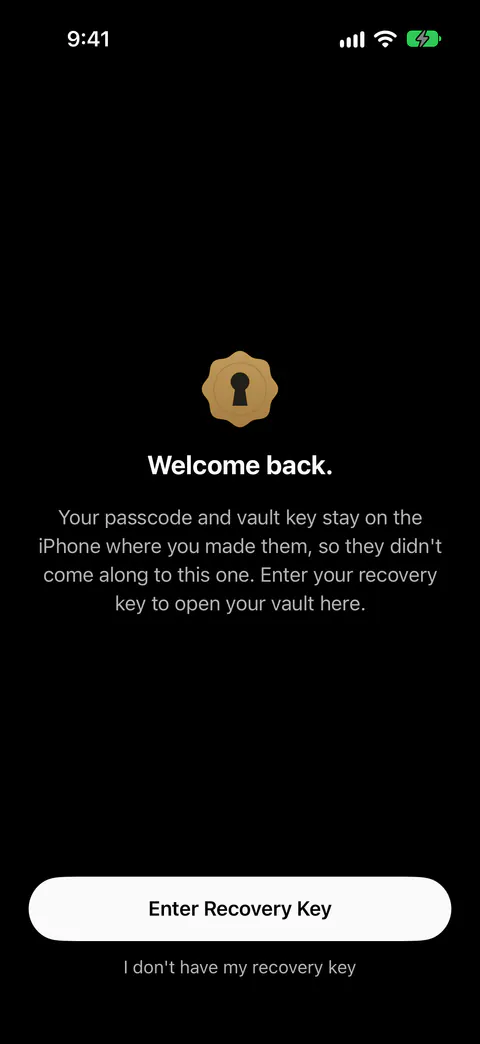
- Tap Enter Recovery Key and type the key. On an iPhone that has Sealed’s data but not its key, Sealed opens with a Welcome back screen that says your passcode and vault key stay on the iPhone where you made them, and asks for your recovery key.
- Choose a new passcode when it asks, and confirm it.
- Open a few items to check them. Photos and videos come down from your backup as you open them.
If you set the new iPhone up as new
- Sign in to the same Apple Account. To restore, the iPhone has to be signed in to the same Apple Account you backed up with, and Sealed says so when it finds no backup.
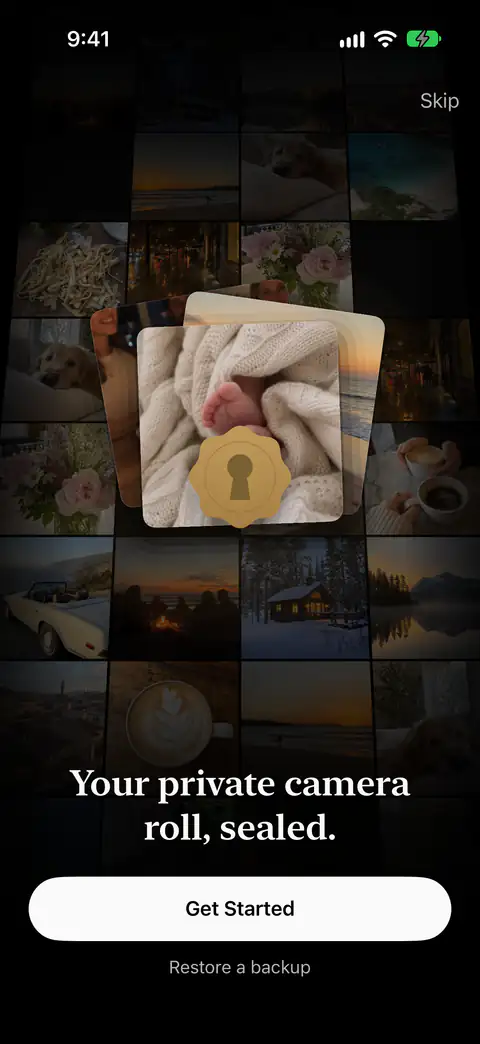
- Install Sealed and tap Restore a backup on the first screen, not Get Started. On the first screen of a fresh install, Restore a backup leads to a screen that asks for your recovery key and says your files are decrypted only on this device.
- Type your recovery key. A mistyped recovery key fails its built-in checksum, and Sealed says that the key isn’t valid. Before it installs a recovery key, Sealed checks that the key opens the backup in your iCloud account. A well-formed key from another vault is refused with a message that it doesn’t match the backup, and nothing on the iPhone changes.
- Watch the count. On a new iPhone with a fresh install of Sealed, the first screen offers Restore a backup, you enter your recovery key and tap Restore My Vault, and Sealed shows how many of your files it has downloaded.
If you don’t have the recovery key
On such an iPhone, without the recovery key what is left of the vault can’t be opened, and the only way forward is to erase it and start over, which leaves your iCloud backup where it is. Don’t erase anything yet. If the old iPhone still opens the vault, go back to it: While your vault is open you can see your recovery key again in Settings, under Sync & Backup, then Recovery Key. Then try the new phone again.
If you made a sealed copy of the key, or gave parts of it to key guardians, those bring the key back too. A sealed copy locks your recovery key under a phrase only you know, so the copy can sit in your email or in Notes. Key guardians split your recovery key into 3 parts where any 2 bring it back, or into 5 parts where any 3 do, one part for each person you trust.
Things to set up again
Passcodes, a decoy vault and Maximum Security belong to the old phone, not to the backup. A new iPhone cannot inherit the Maximum Security binding of the old one, so you restore with your recovery key. Turn on again what you used, in Settings, under Passcode & Unlock, and only then erase the old iPhone.
Where Sealed helps, and where it doesn’t
It helps if the backup ran and you kept the recovery key. Backup goes to your own iCloud account, not to a server of ours. Files, names, notes and record fields are encrypted on your iPhone before they are uploaded, so iCloud receives only ciphertext. Encrypted iCloud backup is free.
It doesn’t carry what never reached the backup, so check the backup line before you move. The vault home shows when you last backed up, or says plainly that your vault is only on this iPhone.
It doesn’t carry the key across by itself, or treat an iPhone backup as a way back. Sealed keeps its encrypted files out of your iPhone’s own backups, because the key never leaves this iPhone and a copy in a phone backup would not open on a new phone.
It doesn’t get you in without the key. Because your key never reaches us, we cannot recover your vault or reset your passcode for you. Without the recovery key the passcode can’t be reset, not by you and not by us, and the reset screen says so.
Questions and answers
Will my vault come across with Quick Start?
That depends on where the vault app keeps its files and its key. With Quick Start you choose to download from iCloud, where apps and data download in the background, or to transfer directly from the old iPhone, where you wait for the transfer to finish on both phones. Apple’s pages don’t say how a direct transfer treats an app’s device-only keychain items, so plan for the key not to come along. As for Sealed: Your vault key stays on the iPhone it was made on, so on a new iPhone Sealed asks for your recovery key.
Do I need the old iPhone to restore my vault?
Not for what is in your backup. To restore, the iPhone has to be signed in to the same Apple Account you backed up with, and Sealed says so when it finds no backup. The recovery key is the only way to decrypt an iCloud backup on a new iPhone. Items that never reached the backup are only on the old phone, so keep it until the new one opens the vault.
How do I move a vault app that isn’t Sealed?
Read its help page for two answers before you set up the new phone: where its backup goes, and what opens that backup on a new phone. If the answer is a password, an account or a key, make sure you have it written down.
Sources
What this page says about Sealed was checked against the app on .
- Apple Support, Transfer data from your previous iOS or iPadOS device to your new iPhone or iPad — the three ways Apple lists to set up a new iPhone; cited through the ios.setup_methods fact
- Apple Support, Use Quick Start to transfer data to a new iPhone or iPad — downloading from iCloud compared with transferring directly; cited through the ios.quickstart_choice fact
- Apple Support, What does iCloud back up? — app data in an iCloud Backup; cited through the ios.icloud_backup_app_data fact
- Apple Platform Security, Keychain data protection — a device-only keychain item restored on another device is useless; cited through the ios.keychain_device_only fact
- Sealed on the App Store — the listing for the app this guide uses
Get Sealed
Sealed is free to download, and Sealed Pro is an optional in-app purchase.

Sealed: Private Photo Vault
Sealed is free to download, and Sealed Pro is an optional in-app purchase.