Guide · A new or repaired iPhone
Before you trade in or repair your iPhone
Do these in order: back up the phone, move to the new one, check that everything came across, then erase the old one. For Sealed, check Settings, Sync & Backup first: backup on, a recent last backup, and Recovery Key saying Saved. Your vault key stays on the iPhone it was made on, so on a new iPhone Sealed asks for your recovery key. Items that never reached your backup can’t come with you.

On this page
Apple’s order, and where Sealed fits
For an iPhone you are passing on, Apple’s order is to create a backup, transfer your information to the new device, check Parts and Service History for a Finish Repair message, then remove your personal information from the old one.
A vault adds two things to that list. The encrypted files of your photos, videos and documents are left out of your iPhone’s own backups, because the key never leaves the iPhone and the files could not be read on a new one. So the vault needs its own backup, and your recovery key, to reach the new phone.
Step 1: Check Sealed while the old iPhone still works
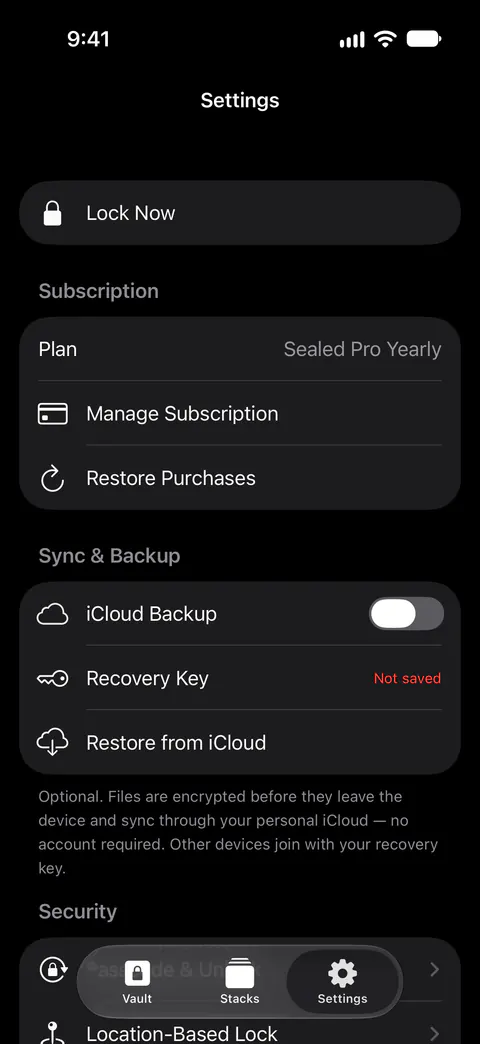
With iCloud Backup on, Settings, under Sync & Backup, shows the time of your last backup and how many items are backed up, shows how many are pending when some are waiting, and has a Back Up Now button. In Settings, under Sync & Backup, the Recovery Key row says Saved once you have confirmed that you saved your key, and Not saved until then.
What you want to see: the backup switch on, a last backup from today, nothing pending, and Recovery Key saying Saved. If it says Not saved, tap it and save the key now. The first time you save your recovery key, Sealed also turns on iCloud Backup, which is free. Then tap Back Up Now and wait for the pending count to reach zero.
Step 2: Put the recovery key somewhere that isn’t this iPhone
The recovery key screen can save or print your key as a PDF sheet, so you can keep a copy on paper that outlives the phone. Anyone who has your recovery key and your iPhone or your iCloud backup can open your vault. While your vault is open you can see your recovery key again in Settings, under Sync & Backup, then Recovery Key.
The recovery key checklist has the rest.
Step 3: Back up the iPhone itself
Apple says iCloud backups are always encrypted, while a backup on your computer is encrypted only if you turn that option on.
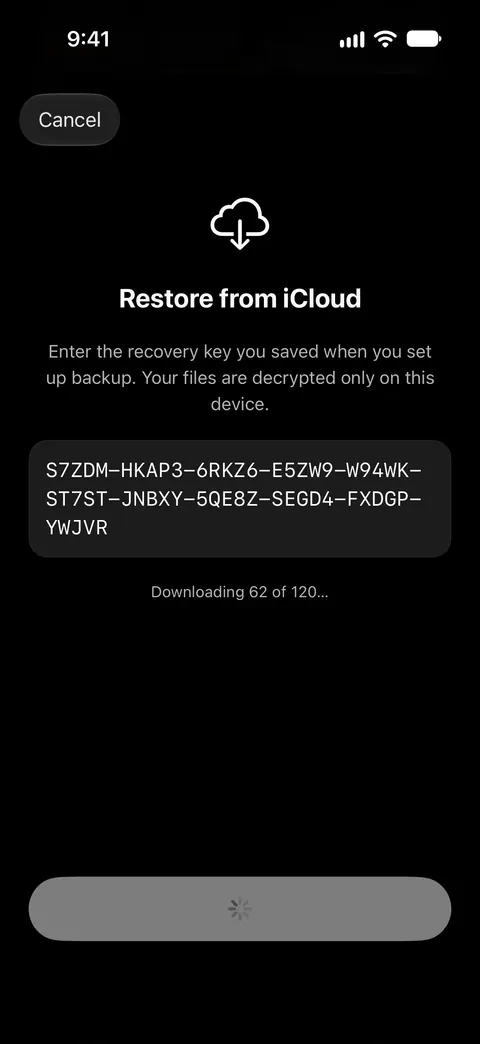
When a vault moves to a new iPhone, its database and settings travel with the app, but its key, its passcodes and its encrypted files do not. Sealed’s own backup is what brings the files back. You can restore your vault on a new iPhone from your backup, with your recovery key.
Step 4: Move to the new iPhone
Quick Start transfers information from an old iPhone with iOS 11 or later to a new one automatically. Then open Sealed. Either it greets you with Welcome back and asks for your recovery key, or, on a phone set up as new, you install it and tap Restore a backup. Moving a vault to a new iPhone walks through both. Your vault key stays on the iPhone it was made on, so on a new iPhone Sealed asks for your recovery key.
Step 5: Check the vault before you erase anything
Open a photo, a document, a note and a record. If the new iPhone says that some items weren’t backed up, they exist only on the old iPhone, so leave it as it is until you have decided what to do about them.
If you used Maximum Security, it doesn’t come along. A new iPhone cannot inherit the Maximum Security binding of the old one, so you restore with your recovery key. After a restore with your recovery key, Maximum Security is off, and you turn it on again in Settings.
Step 6: Then erase the old iPhone
Erase All Content and Settings, under General and then Transfer or Reset, completely erases the iPhone, including cards you added for Apple Pay, photos, contacts, music and apps, and it turns off Find My and Activation Lock, while your content in iCloud is not deleted.
Erasing removes Sealed and its vault from that phone, and leaves your encrypted backup where it is. Deleting the app doesn’t delete your iCloud backup: Delete iCloud Backup in Settings does. Before you erase, sign out of your Apple Account on the old phone, as Apple’s list says.
If it’s a repair, not a trade-in
Before you bring an iPhone in for service, Apple says to back it up, check that your iCloud features have finished syncing, remove your cards and passes from Wallet and check Parts and Service History.
On iOS 27 or later, Ready for Repair or Trade In keeps your iPhone secure and findable in Find My during an eligible repair or trade in, and you turn it on in the Find My app, while on iOS 26 or earlier Apple says to turn Find My off instead.
Apple says never to give your Apple Account password or device passcode to anyone else, and to stay present whenever a technician has access to your device. If you do share your iPhone passcode for a repair, know what it opens. With plain Face ID unlock on, someone who knows your iPhone passcode can open Sealed through the Face ID prompt. Turn off Face ID unlock in Sealed’s Settings, under Passcode & Unlock, until the phone is back, or use Dual Lock if you have Sealed Pro. Dual Lock’s second step takes Face ID or Touch ID only: your iPhone passcode can’t stand in for it, so one watched passcode can’t do both halves.
Apple warns that your iPhone might come back from service erased, in which case you restore it from an iCloud backup or a backup on your computer, or set it up as new. In that case, follow steps 4 and 5 above.
What the recovery key changes
The key is the reason the new phone has to ask. Your vault key is kept in the iPhone Keychain, on this device only, and it can be read only while the phone is unlocked. Without it, nothing in the backup opens. Without the recovery key, what is left of the vault on a new iPhone cannot be opened, by you or by us, and starting over erases it while anything in your iCloud backup stays there.
Where Sealed helps, and where it doesn’t
It helps move a vault without us in the middle. We run no server, so there is nothing of yours for us to see. Files, names, notes and record fields are encrypted on your iPhone before they are uploaded, so iCloud receives only ciphertext.
It helps when a phone is lost, or comes back from a repair erased. Encrypted iCloud backup is free.
It doesn’t carry what was never backed up. Once the key is back, Sealed shows your notes and records, brings photos and videos back from iCloud as you open them, and says plainly that items never backed up to iCloud stayed on the old iPhone and cannot be restored on the new one. Erasing the old phone erases those items.
It doesn’t do Apple’s part. Signing out, Find My or Ready for Repair or Trade In, and the erase itself are Apple’s steps, in Settings and the Find My app.
It doesn’t get you in without the recovery key. Because your key never reaches us, we cannot recover your vault or reset your passcode for you.
Questions and answers
Will my Sealed vault move to my new iPhone by itself?
When a vault moves to a new iPhone, its database and settings travel with the app, but its key, its passcodes and its encrypted files do not. Once the key is back, Sealed shows your notes and records, brings photos and videos back from iCloud as you open them, and says plainly that items never backed up to iCloud stayed on the old iPhone and cannot be restored on the new one.
Does erasing my iPhone delete my Sealed backup?
Erase All Content and Settings, under General and then Transfer or Reset, completely erases the iPhone, including cards you added for Apple Pay, photos, contacts, music and apps, and it turns off Find My and Activation Lock, while your content in iCloud is not deleted. Backup goes to your own iCloud account, not to a server of ours. Delete All Data inside Sealed is a different action. Delete All Data erases your vault from the iPhone and, when iCloud can be reached, your encrypted backup too.
What if I erase my iPhone before I check Sealed?
You can restore your vault on a new iPhone from your backup, with your recovery key. The recovery key is the only way to decrypt an iCloud backup on a new iPhone. If you delete Sealed from an iPhone while iCloud Backup is off, the vault on that iPhone is deleted with it.
Can a repair technician open my vault?
Not by opening the app with your iPhone passcode alone, unless Face ID unlock is on. Sealed has a passcode of its own, a gate inside the app that is separate from your iPhone passcode. With plain Face ID unlock on, someone who knows your iPhone passcode can open Sealed through the Face ID prompt. Apple says never to give your Apple Account password or device passcode to anyone else, and to stay present whenever a technician has access to your device.
Sources
What this page says about Sealed was checked against the app on .
- Apple Support, What to do before you sell, give away, or trade in your iPhone or iPad — published May 29, 2026, read 13 Nov 2026; Apple’s order, and what Erase All Content and Settings does
- Apple Support, Prepare your iPhone or iPad for a service appointment — published September 15, 2026, read October 28, 2026 (used through the ios.service_prep and ios.repair_erased facts); getting ready for a repair, and what to expect when it comes back
- Apple Support, How to use Ready for Repair or Trade In — published October 15, 2026, read 13 Nov 2026; the Find My step for iOS 27 and later
- Apple Support, Backup methods for iPhone or iPad — published October 20, 2026, read 13 Nov 2026; iCloud and computer backups, and which are encrypted
- Sealed on the App Store — the listing for the app this guide uses
Get Sealed
Sealed is free to download, and Sealed Pro is an optional in-app purchase.

Sealed: Private Photo Vault
Sealed is free to download, and Sealed Pro is an optional in-app purchase.