Guide · Private photos
Where private photos still show up on iPhone
Anywhere the photo library reaches. Memories, featured photos and the Photos widget can bring a picture up on their own. Search can find words printed in it. Shared albums and a shared library show it to other people. Every device on your account gets a copy, a deleted photo waits in the album of deleted items, and a screenshot of it is a second photo. Each place has a check below. Taking the picture out of the library ends most of them at once.

On this page
Nine places to check
Work down the list once, on the phone you use most. Each place ends with the check to run.
1. Memories, featured photos and the Photos widget
Photos can feature your photos in memories, in featured photos and in the Photos widget, and you can turn that off with Show Featured Content, under Collections and then your account button in Photos. Photos you move out of the Library into Apple’s separate locked album stay out of the Library, other albums and the Photos widget, and from iOS 16 that album asks for authentication to open.
Check: turn off Show Featured Content if memories have surprised you, and ask whether the photo needs to be in the Library at all. The finer switches, one person or one day at a time, are in keeping photos out of Memories.
2. Search, in Photos and from the Home Screen
You can search Photos by date, place, category, people you have named and text, with an email address or a phone number as Apple’s examples of text.
Check: type a word that is printed on the photo, first in the Photos search, then after swiping down on the Home Screen. Only the second search has an off switch (Apple’s Spotlight guide). The steps are in keeping photos out of search.
3. CarPlay, notification previews and suggestions
Apple lets you require Face ID, Touch ID or your passcode to open an app, and says information inside a locked app won’t appear in other places such as CarPlay, notification previews, search, Siri suggestions or your call history.
Check: whether Photos should be a locked app. Built-in apps can be locked, though not taken off the Home Screen (Apple’s guide to locking apps). To lock an app, touch and hold it on the Home Screen and tap Require Face ID, Touch ID or Passcode, and it locks again each time you quit it.
4. Shared albums and the Shared Library
When you share photos in a shared album, the people you share with can save them to their own libraries, and photos saved that way stay in their library even if the shared album is deleted. In an iCloud Shared Photo Library you can invite up to five contacts, and anyone in it can add, edit or delete items.
Check: each shared album you post to, and switch Photos to Shared Library view to see what everyone in it can see. Once someone has saved a copy, removing yours doesn’t take theirs back.
5. Your other devices
With iCloud Photos on, your photos and videos are stored in iCloud so that you can reach them on all your devices. If you use iCloud Photos, a photo you move into that locked album is moved out of the Library on your other devices too. By default, Apple keeps the encryption keys for iCloud Photos, Notes and iCloud Drive in its own data centers so that it can help you recover them, and only the optional Advanced Data Protection makes them end-to-end encrypted.
Check: which iPads and Macs are signed in to your account and syncing Photos. A family iPad with a passcode everyone knows opens the same library.
6. Recently Deleted
When you delete photos and videos in Photos, they go to its Recently Deleted album for 30 days, and after that they are permanently deleted. In iOS 16 and later, Photos asks for Face ID or Touch ID before it opens the Recently Deleted album, unless you turn that off in Settings.
Check: open the album after you delete anything private, and clear it. To remove a deleted photo for good before the time is up, open Recently Deleted in Photos, select the photo, tap More, tap Delete and confirm, and Apple says you cannot get it back after that. Who else can open it is covered in Recently Deleted on iPhone.
7. Screenshots
Screenshots are saved to your photo library automatically. In Photos, your screenshots are in the Screenshots album, under Collections and then Media Types.
Check: the Screenshots album, for codes, bank pages and other people’s messages. Where iPhone screenshots go shows how to stop one saving at all.
8. Apps that can read your library
Apple says you control whether third-party apps can access information in Photos, Contacts, Calendar and other apps, and Settings, under Privacy & Security, lists the apps that asked and lets you turn each one on or off.
Check: Settings, then Privacy & Security, then Photos. Anything with Full Access can read every picture; which apps can see your photos helps you cut that back.
9. Backups
If you have not turned on iCloud Photos, an iCloud Backup may include the photos and videos in your Photos or Camera Roll.
Check: whether iCloud Photos is on. If it is off, your phone’s backup may carry the photo even after the phone itself is wiped (Apple’s backup article).
What a vault changes
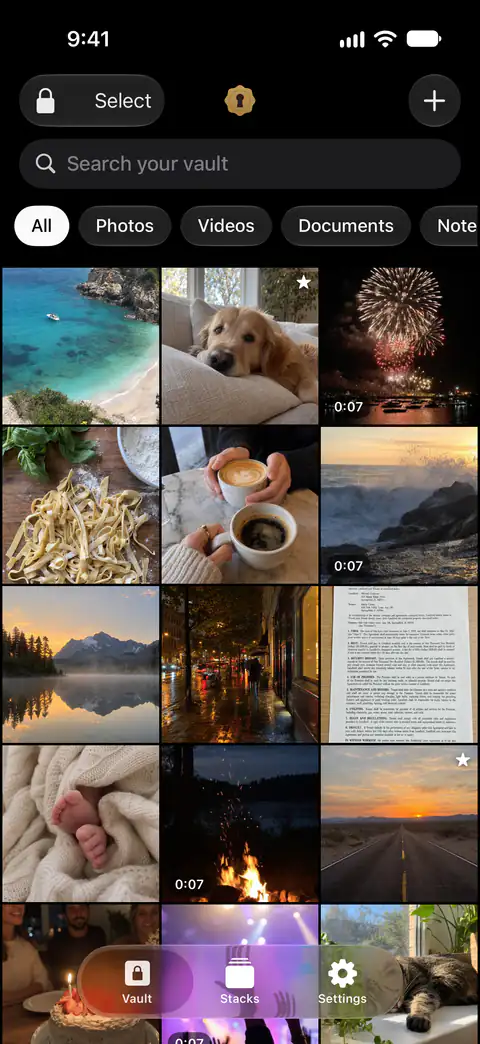
Memories, the widget, Photos search and the Home Screen search’s photo results all read the photo library (Apple’s Spotlight guide). A picture that has left the library has nothing for them to feature or find. In this order:
- Find what matters. Find Private Photos checks your camera roll for passports and IDs, cards, codes, recovery phrases and password screenshots, and offers to seal them. Find Private Photos runs on your iPhone: nothing is sent anywhere, and the text it reads isn’t kept.
- Add it to Sealed. Sealed imports only the photos and videos you choose, and deletes the originals in Photos only when you ask.
- Delete the original when Sealed asks. After you import photos, Sealed asks whether to delete the originals from Photos or keep them, and says that deleted originals move to Recently Deleted in Photos.
- Delete it again from Recently Deleted, as in the sixth check.
- Look for the copies you made: shared albums, the Shared Library and screenshots.
Where Sealed helps, and where it doesn’t
It helps take the pictures you choose out of the library, so the features that read it have nothing to show. Photos and videos are sealed the moment they arrive, and afterwards you can remove the originals from Photos if you like.
It helps keep the vault itself out of sight. Sealed locks as soon as you leave it unless you choose a delay, and it covers its contents in the app switcher. Sealed covers its contents while the screen is being recorded or mirrored, and that is on by default.
It doesn’t reach a copy that is somewhere else. Until you delete them, the originals stay in Photos, outside the vault. A photo you shared, sent or screenshotted stays where it went.
It doesn’t change your iPhone’s settings for you. The switches are in one checklist.
It can’t let you back in without your passcode or your recovery key. Because your key never reaches us, we cannot recover your vault or reset your passcode for you.
Questions and answers
Will a photo I moved out of the Library still show in the Photos widget?
Photos you move out of the Library into Apple’s separate locked album stay out of the Library, other albums and the Photos widget, and from iOS 16 that album asks for authentication to open.
Can someone see my photos from my other devices?
With iCloud Photos on, your photos and videos are stored in iCloud so that you can reach them on all your devices. If you use iCloud Photos and delete a photo on one device, it is deleted on all your other devices where you are signed in with the same Apple Account.
If I delete a photo from Photos, is it gone?
When you delete photos and videos in Photos, they go to its Recently Deleted album for 30 days, and after that they are permanently deleted. To remove a deleted photo for good before the time is up, open Recently Deleted in Photos, select the photo, tap More, tap Delete and confirm, and Apple says you cannot get it back after that.
Sources
What this page says about Sealed was checked against the app on .
- Apple iPhone User Guide, people, memories and holidays in Photos on iPhone (iOS 27) — read 13 Nov 2026; memories, featured photos and the Photos widget, Show Featured Content
- Apple Support, the Hidden album in Photos (article 104987) — published March 16, 2026, read 13 Nov 2026; what stays out of the Library, other albums and the widget
- Apple iPhone User Guide, Search for photos and videos on iPhone (iOS 27) — read 13 Nov 2026; searching Photos by text, places, dates and named people
- Apple iPhone User Guide, Search with Spotlight on iPhone (iOS 27) — read 13 Nov 2026; text in photos, images in your photo library, Show App in Search
- Apple iPhone User Guide, locking an app on iPhone (iOS 27) — read 13 Nov 2026; CarPlay, notification previews, search and Siri suggestions; built-in apps can be locked but not taken off the Home Screen
- Apple Support, How to use Shared Albums in Photos (article 108314) — read 13 Nov 2026; people you share with can save copies to their own library
- Apple Support, Delete photos on your iPhone or iPad (article 104967) — published March 31, 2026, read 13 Nov 2026; Recently Deleted, iCloud Photos and the Shared Library
- Apple Support, If you’re missing photos or videos in the Photos app (article 118558) — published April 29, 2026, read 13 Nov 2026; iCloud Photos on all your devices
- Apple Support, iCloud data security overview (article 102651) — published January 5, 2026, read 13 Nov 2026; who holds the keys to Photos in iCloud
- Apple iPhone User Guide, Take a screenshot on iPhone (iOS 27) — read 13 Nov 2026; screenshots saved to the library, the Screenshots album
- Apple iPhone User Guide, Control access to information in apps on iPhone (iOS 27) — read 13 Nov 2026; which apps can reach your photos
- Apple Support, What does iCloud back up? (article 108770) — published May 1, 2025, read 13 Nov 2026; photos in an iCloud Backup when iCloud Photos is off
- Sealed on the App Store — the listing for the app this guide uses
Get Sealed
Sealed is free to download, and Sealed Pro is an optional in-app purchase.

Sealed: Private Photo Vault
Sealed is free to download, and Sealed Pro is an optional in-app purchase.